Comprehensive guide to using the COMPS platform (Computational Modeling Platform Service) with idmtools.
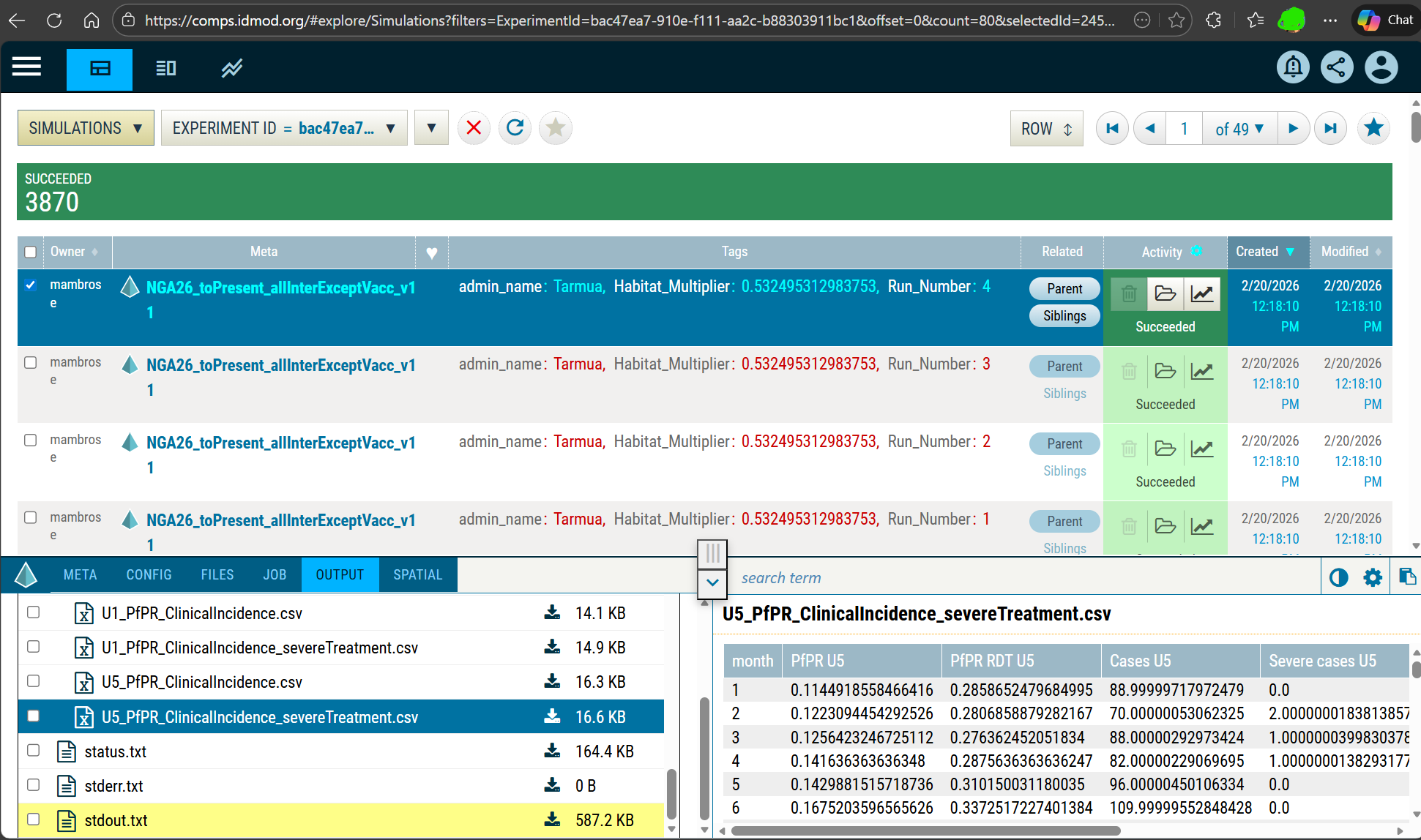
Overview
COMPS is IDM's cloud-based high-performance computing platform designed for large-scale computational modeling. It provides scalable compute resources, data management, and job scheduling specifically optimized for disease modeling workflows.
Key features
- Cloud-Based: No local compute resources needed
- Massive Scale: Run thousands of simulations simultaneously
- Data Management: Integrated storage and retrieval
- Collaboration: Share experiments and results with team members
- Priority Queues: Production and development environments
- Azure Integration: Leverages Microsoft Azure infrastructure
Prerequisites
1. Account setup
Contact IDM to obtain COMPS access:
- COMPS account credentials
- Environment access (e.g. Nibbler)
- Network configuration
2. Installation
| pip install idmtools[idm]
# or
pip install idmtools-platform-comps
|
3. Authentication
COMPS needs username and password to login.
Basic configuration
Predefined environments
- SLURMSTAGE
- CALCULON
- Nibbler
- SLURM
- SLURM2
- BOXY
- ...
To see a list of aliases and configuration options using the CLI command
| idmtools info plugins platform-aliases
|
1
2
3
4
5
6
7
8
9
10
11
12 | from idmtools.core.platform_factory import Platform
# Connect to COMPS
platform = Platform(
"Nibbler", # platform block name or platform alias name
endpoint="https://comps.idmod.org", # platform endpoint
environment="Nibbler", # platform environment
type = "COMPS", # platform type
priority="Highest",
node_group="idm_abcd",
num_cores=1
)
|
Configuration file
Create ~/.idmtools/idmtools.ini:
| [My_COMPS]
type = COMPS
endpoint = https://comps.idmod.org
environment = Nibbler
priority = Highest
num_cores = 1
node_group = idm_abcd
|
Create platform:
| from idmtools.core.platform_factory import Platform
platform = Platform("Nibbler") # Here Nibbler is a predefined platform alias
# Or use idmtools.ini:
platform = Platform("My_COMPS")
|
Running simulations
Basic example
 1
 2
 3
 4
 5
 6
 7
 8
 9
10
11
12
13
14
15
16
17
18
19
20
21
22
23
24
25
26
27 | from idmtools.core.platform_factory import Platform
from idmtools.entities.experiment import Experiment
from idmtools_models.python.python_task import PythonTask
# Create platform
platform = Platform("Nibbler")
# Create task
task = PythonTask(
script_path="model.py",
python_path="python3"
)
# Create experiment
experiment = Experiment.from_template(
task,
name="My COMPS Experiment"
)
# Run on COMPS
experiment.run(
platform=platform,
wait_until_done=True
)
print(f"Experiment ID: {experiment.id}")
print(f"COMPS URL: https://comps.idmod.org/experiments/{experiment.id}")
|
With parameter sweep
See Parameter Sweeps for full examples of sweeping parameters on any platform including COMPS.
COMPS-specific features
Platform Parameters:
| Parameter |
Description |
endpoint |
URL of the COMPS endpoint. Default: https://comps.idmod.org |
environment |
COMPS environment. Options: Calculon, Nibbler, SlurmStage, Cumulus |
priority |
Job priority. Options: Lowest, BelowNormal, Normal, AboveNormal, Highest |
node_group |
Node group. Options: None, idm_abcd,idm_48cores |
num_retries |
Num of retries |
num_cores |
Num of cores |
max_workers |
Max worker |
batch_size |
Simulations per batch |
For example to pass specific options priority, node group, and cores directly to Platform():
| platform = Platform('Calculon', priority='Highest', node_group="idm_abcd", num_cores=1)
|
Working with assets
Uploading assets
| # Add files to experiment (shared across simulations)
experiment.add_asset("config.json")
experiment.add_asset("large_database.db") # Uploaded once, shared
# Add simulation-specific assets
for sim in experiment.simulations:
sim.task.add_asset(f"input_{sim.id}.csv")
|
Assetize outputs workitem
Assetizing outputs lets you create an AssetCollection from the outputs of a previous Experiment, Simulation, Workitem,
or other AssetCollections. The resulting AssetCollection is available on COMPS under the associated workitem and AssetCollection.
Examples can be found in examples/cookbook/comps/assetize_outputs.
| from idmtools_platform_comps.utils.assetize_output import AssetizeOutput
ao = AssetizeOutput(file_patterns=["output.json"], related_experiments=[experiment])
ao.run(wait_until_done=True)
|
Monitoring and management
Check status
| # Refresh experiment status
experiment.refresh_status(platform)
print(f"Status: {experiment.status}")
|
Query experiments
| from idmtools.core import ItemType
# Get experiment by ID
exp = platform.get_item(
"experiment-id-here",
item_type=ItemType.EXPERIMENT
)
|
Downloading results
Simple download
1
2
3
4
5
6
7
8
9
10
11
12
13 | from idmtools.core import ItemType
# Get simulation object
simulation = platform.get_item(sim_id, ItemType.SIMULATION, raw=True)
# Specify files to download
files = ["output/result.json", "StdOut.txt", "Assets/model1.py"]
# Download files to output directory
ret_files = platform.get_files(simulation, files=files, output="output")
# Download files from experiment
files = platform.get_files(experiment, files=files, output="output")
|
Using analyzers
See Analyzing Results for full examples of using analyzers with COMPS.
Advanced features
SSMT Analyzer on COMPS
Run spatial models with SSMT:
| from idmtools.assets import AssetCollection
from idmtools.core.platform_factory import Platform
from idmtools_platform_comps.ssmt_work_items.comps_workitems import SSMTWorkItem
wi_name = "test docker image pip list"
command = "python3 -m pip list"
if __name__ == "__main__":
with Platform('CALCULON'):
wi = SSMTWorkItem(name=wi_name, command=command, transient_assets=AssetCollection.from_directory("files"))
wi.run(wait_until_done=True)
|
Suites
Group related experiments:
1
2
3
4
5
6
7
8
9
10
11
12
13 | from idmtools.entities.suite import Suite
# Create suite
suite = Suite(name="Complete Study")
suite.add_experiment(exp1)
suite.add_experiment(exp2)
suite.add_experiment(exp3)
# Run on COMPS
suite.run(platform=platform)
print(f"Suite ID: {suite.uid}")
print(f"COMPS URL: https://comps.idmod.org/suites/{suite.uid}")
|
COMPS scheduling
idmtools supports job scheduling on the COMPS platform for multiple scenarios depending on your research requirements.
Scheduling scenarios
| Scenario |
Use case |
| N cores, N processes |
Single-threaded or MPI-enabled workloads (e.g. EMOD) |
| N cores, 1 node, 1 process |
Models spawning worker threads (e.g. GenEpi) or requiring large memory |
| 1 node, N processes |
High migration / interprocess communication; same-node MPI shared memory |
Configuration
To use scheduling, create a workorder.json and add it as a transient asset. This takes precedence over settings in idmtools.ini or runtime parameters.
Option 1 — Existing file:
| from idmtools_platform_comps.utils.scheduling import add_work_order
add_work_order(ts, file_path="path/to/WorkOrder.json")
|
Option 2 — Dynamic creation:
1
2
3
4
5
6
7
8
9
10
11
12
13 | from idmtools_platform_comps.utils.scheduling import add_schedule_config
add_schedule_config(
ts,
command="python -c \"print('hello test')\"",
NodeGroupName="idm_abcd",
NumCores=2,
NumProcesses=1,
NumNodes=1,
Environment={"key1": "value1"}
)
experiment.run(scheduling=True)
|
HPC cluster — workorder.json
| {
"Command": "python -c \"print('hello test')\"",
"NodeGroupName": "idm_abcd",
"NumCores": 1,
"SingleNode": false,
"Exclusive": false
}
|
Slurm cluster — workorder.json
| {
"Command": "python3 Assets/model1.py",
"NodeGroupName": "idm_abcd",
"NumCores": 1,
"NumProcesses": 1,
"NumNodes": 1,
"Environment": {
"PYTHONPATH": "$PYTHONPATH:$PWD/Assets"
}
}
|
COMPS CLI
Use COMPS command-line tools:
With EMOD
| from idmtools_models.emod import EmodTask
# Create EMOD task
emod_task = EmodTask.from_default()
emod_task.set_parameter("Run_Number", 0)
# Run on COMPS
experiment = Experiment.from_template(emod_task, name="EMOD on COMPS")
experiment.run(platform=platform)
|
Next steps